
Want to make music faster and more professionally in 2026? Mastering 50 FL Studio shortcuts will not only save you hours a week but also keep your creative flow seamless. This article compiles the most important key combinations, from basic to advanced, helping you optimize your workflow on Playlists, Piano Roll, and Mixers to become a true Producer.
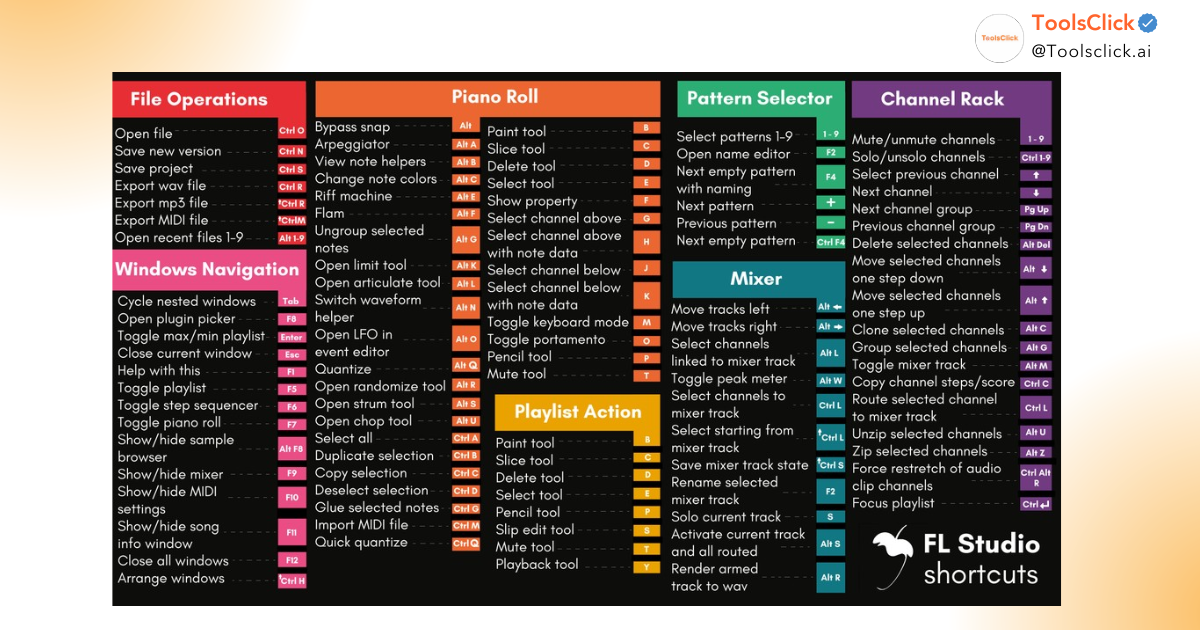
To become an effective producer, memorizing and mastering keyboard shortcuts is crucial. Below is a comprehensive list of the most basic and essential FL Studio keyboard shortcuts, categorized by the main working areas within this DAW software for easy tracking and practice.
This is a set of keyboard shortcuts that help you quickly manipulate MIDI notes, from drawing, deleting, and cutting, to shifting pitch and chords. Mastering the FL Studio piano roll shortcuts will make writing melodies, basslines, or drum patterns much faster.
| Shortcut | Function | Note |
| Ctrl + A | Select all the musical notes. | |
| Ctrl + C | Copy the selected notes. | |
| Ctrl + V | Paste the copied notes. | |
| Ctrl + B | Duplicate the selection area. | It’s extremely useful for repeating a melody. |
| Ctrl + D | Deselect all. | |
| Shift + Click | Select multiple musical notes at the same time. | |
| Shift + ↑/↓ | Shift the musical note up/down by one octave. | |
| Ctrl + ↑/↓ | Shift the musical note up or down by one semitone. | |
| Alt + Q | Open the Quantize panel to align the musical notes with the grid. | Help your beat and melody stay in sync. |
| Alt + G | Group the selected notes together. |
The FL Studio Playlist shortcuts help you efficiently manage and organize patterns, audio clips, and automation clips on the timeline. This is where you build the structure for your entire track.
| Shortcut | Function | Note |
| B | Brush tool. | Draw a repeating pattern or clip. |
| P | Pencil tool. | Draw each pattern or clip one by one. |
| C | Slice tool. | Used for cutting clips. |
| T | Mute tool. | Temporarily mute a clip. |
| E | Select tool. | |
| Ctrl + Click-Kéo | Create a selection. | |
| Shift + Click-Kéo | Duplicate a clip. | The quickest and most common way to copy. |
| Ctrl + B | Duplicate the selection area. | This applies to patterns, audio, and automation. |
| Ctrl + Shift + L | Assign the selected channels to the empty mixer tracks. | |
| Alt + T | Add a Time Marker. | Mark the segments such as Intro, Verse, Chorus. |
The FL Studio Mixer shortcuts and FL Studio Channel Rack shortcuts allow you to quickly navigate, route, and manage instruments and effect plugins, which are central to the mixing and mastering process.
These are the most basic FL Studio playback control and file management shortcuts that any DAW user should know to control playback, pause, record, and save projects.
Using keyboard shortcuts is not just about memorizing commands, but also about applying them to specific techniques to optimize the music production workflow.
Using Shift + Click and drag on the playlist is the most efficient way to quickly duplicate a pattern or audio clip in FL Studio . Alternatively, to duplicate an entire arrangement, you can use Ctrl + Click and drag to select the area, then press Ctrl + B. This technique allows you to quickly build the song structure without having to redraw it from scratch.
The shortcut key ‘C’ to cut music (Slice) activates the Slice Tool, the most powerful tool for cutting audio clips directly on a playlist. For more precise cutting, you can zoom in on the playlist by holding Ctrl + scrolling the mouse wheel . Another effective FL Studio shortcut tip is to hold Shift + right-click to cut and delete smaller sections, allowing you to quickly clean up unwanted audio segments.
Grouping tracks in a mixer helps manage sound groups like drums, bass, and vocals more efficiently. Here’s how:
This operation sends the signals of all selected tracks to a single track, allowing you to process effects and adjust the volume for the entire group synchronously, which is a crucial step in the mixing process.
See also related articles:
Once you’ve mastered the basic keyboard shortcuts, you can improve your productivity by customizing and using specialized tools and equipment.
Currently, FL Studio does not support a feature to directly change custom keyboard shortcuts within the software. However, the producer community has found a solution by using third-party software such as AutoHotkey (for Windows) to create custom scripts that assign complex action sequences to a single key combination. This is an advanced solution that requires some technical knowledge.
Using Ctrl + Shift + R to open the MP3 file export window or Ctrl + R for WAV files is the fastest and most convenient rendering shortcut . For large projects that overload the CPU, a good trick is to “Consolidate” heavy tracks (containing many VSTs and effects) into audio files. To do this: Right-click on the track in the playlist -> Consolidate track -> From track start. This helps free up system resources, one of the most effective ways to optimize CPU usage in FL Studio .
Investing in a quality keyboard for FL Studio music production , especially a mechanical keyboard, provides a better typing feel and greater durability. Furthermore, you can equip it with Producer Keycap sets , which are pre-printed keycaps with icons and names of FL Studio functions and shortcuts. This not only helps you memorize shortcuts faster but also inspires creativity and brings a professional look to your workspace.
Mastering keyboard shortcuts is one thing, but to fully utilize the power of a DAW, using a fully licensed and feature-rich version is crucial.
From version 21.2 onwards, Image-Line has integrated the groundbreaking Stem Separation AI technology , allowing users to separate a complete music file into individual components such as vocals, drums, bass, and instruments. This is an extremely powerful feature for producers specializing in remixes or sampling, and it’s only available on the Producer Edition and above. Furthermore, one of the biggest advantages of buying FL Studio is the Lifetime Free Updates policy , meaning you only need to purchase it once and get free lifetime updates to the latest versions (2026, 2027, etc.).
See also: 5 Ways to Buy Authentic and Affordable FL Studio for Beginners
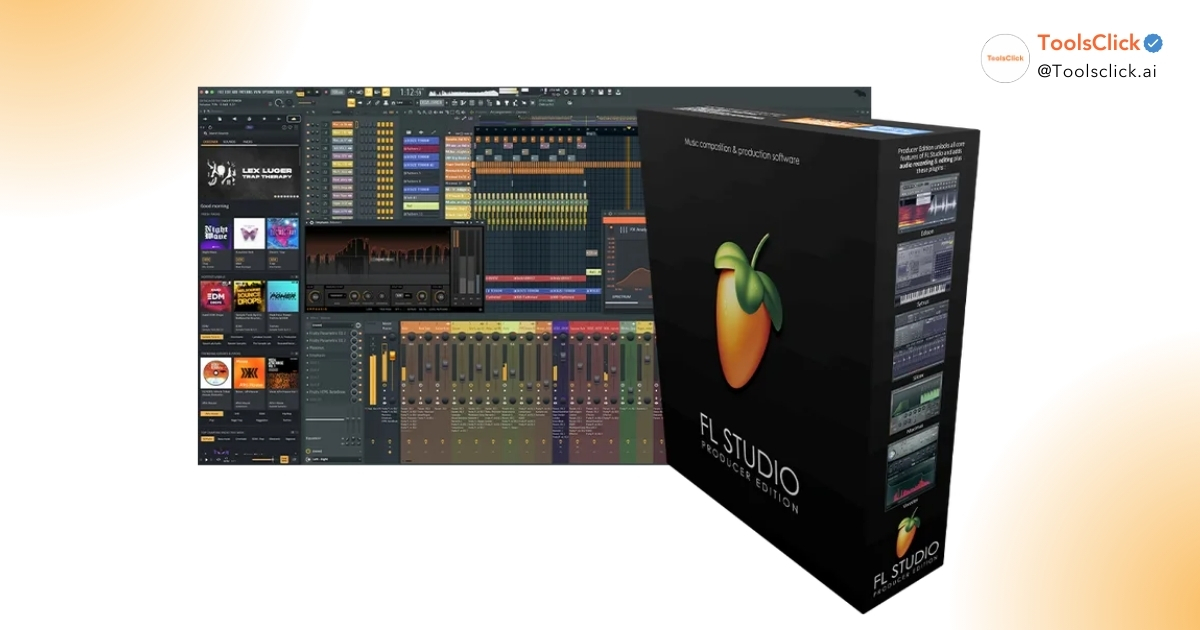
To ensure safety and receive all the benefits, you should purchase FL Studio keys from authorized distributors. At ToolsClick , we pride ourselves on providing genuine licensed software packages with a fast process and exclusive offers.
Benefits of buying FL Studio Producer at ToolsClick:
 Special offer: Receive 200 Splice Creator credits instantly when you purchase the Producer or All Plugins Edition package, giving you access to the world’s leading library of high-quality samples.
Mastering 50 FL Studio keyboard shortcuts is key to transitioning from a beginner to a professional producer with a smooth workflow. Combining keyboard shortcut skills with a full suite of AI-powered, licensed software will help you break through creative limits. Start practicing today to see the difference in each of your music projects. You can also search for and download FL Studio keyboard shortcut PDF files for easy reference.
Contact ToolsClick now to get the official FL Studio Producer Edition with a special offer of 200 Credit Splices and lifetime update support.


Group buying website for tools
World's leading

Youtube ToolsClick
A guide from A to Z

Fanpage
Top quality

Group ToolsClick
Technical Support & Gifts

ToolsClick Software
Proprietary software