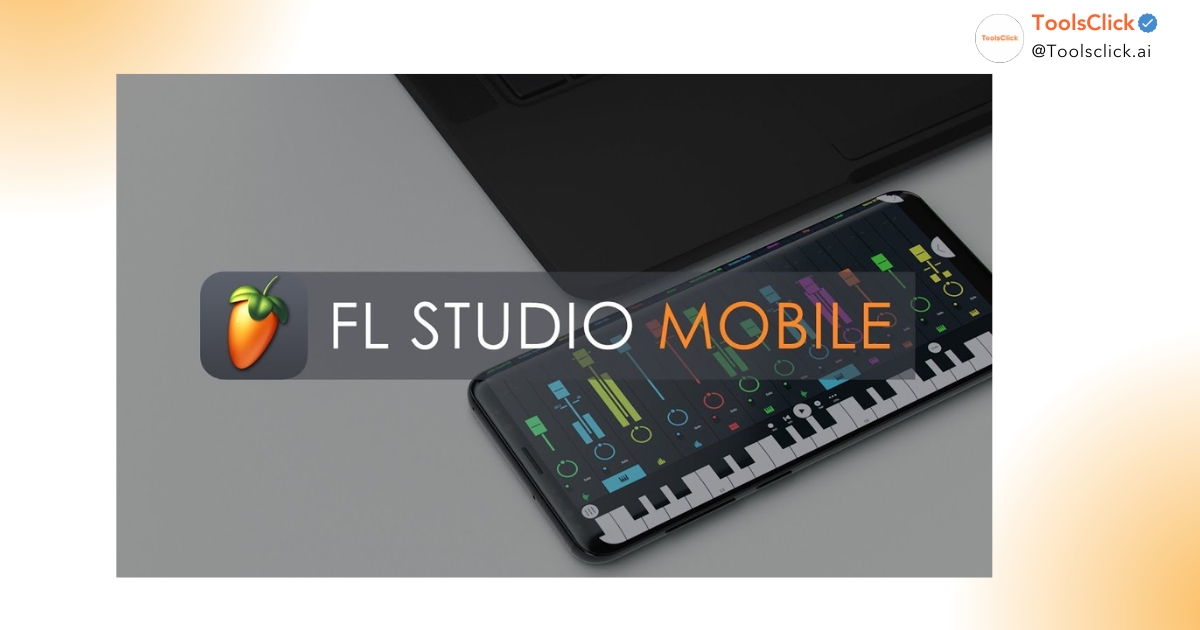

You are looking for one computer running FL Studio Smooth to turn musical ideas into reality? Whether you are a student on a tight budget or an office worker who wants to pursue your passion, choosing the right configuration is key to avoiding lag and crashes. This article will analyze in detail the 2026 standard FL Studio music-making computer configuration and suggest the 7 most optimal PC and laptop options within the price range, helping you create without limits.
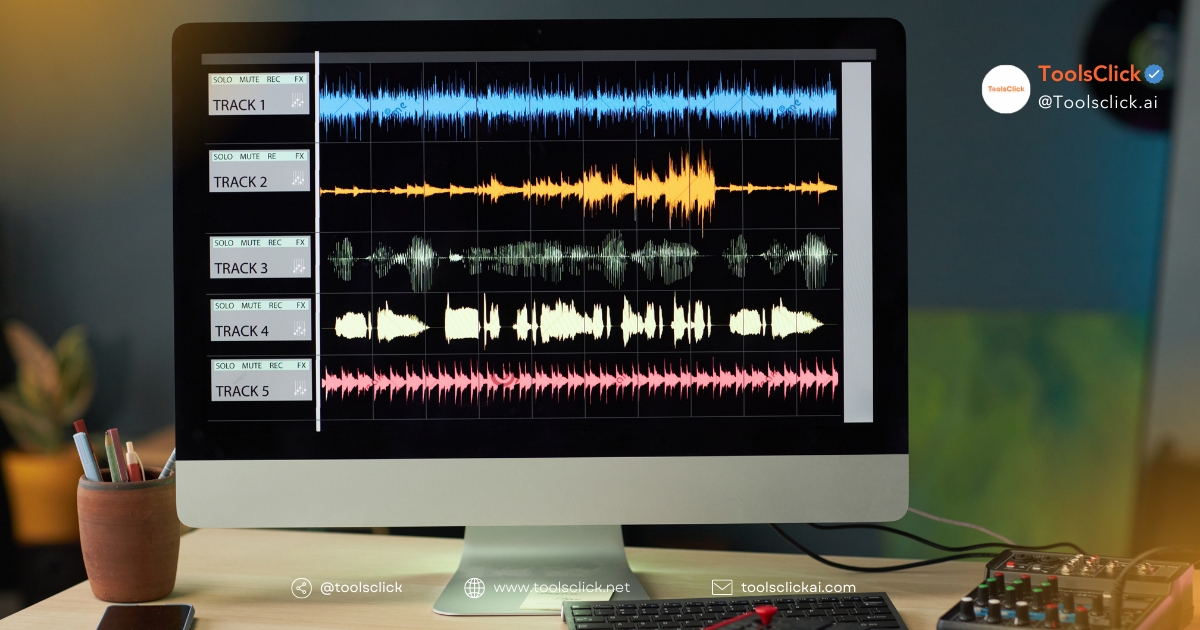
To run FL Studio smoothly, your computer needs to meet certain hardware requirements, from basic for beginners to professional for studio producers.
This is the most basic configuration level to be able to install and use FL Studio for learning and getting acquainted with the main features. With this configuration, you can create simple beats, using a few VSTs/plugins that aren’t too heavy.
Although Image-Line, the developer of FL Studio, only requires 4GB of RAM, given our experience supporting multiple users at ToolsClick, 8GB of RAM is a practical minimum for an uninterrupted learning experience.
This is the ideal configuration level for music students and office workers who want to produce music more seriously. This configuration allows handling more complex projects, using multiple tracks and heavy VSTs such as Serum and Kontakt without worrying about overload.

For professional producers or studios that need to handle large, complex projects with dozens of tracks, multiple VSTs and heavy effects. This configuration ensures maximum performance, fast rendering and long-term stable operation.
See more related articles: What is FL Studio and Why Should You Start Now?
Choosing the right components is vital to building one computer running FL Studio effective. Here are the most important components you need to prioritize.
The CPU is the most important component, responsible for handling all tasks from running virtual instruments (VST) to mixing, mastering and rendering audio.
Advice: Priority should be given to CPUs with high single-core performance. The new generation Intel Core i5/i7 or AMD Ryzen 5/7 lines are usually the best and balanced choice for FL Studio.

RAM is where samples, VSTs, and project data are temporarily stored while you work. Lack of RAM is the main cause of “System Overload”, lag when you load large sound libraries.
Hard drive speed directly affects the time it takes to start FL Studio, download projects and sound libraries (sample libraries).
Optimal configuration: Use a combination of an NVMe SSD (from 512GB) to run the system and an HDD (from 1TB) to store data.

Soundcard, also known as Audio Interface, is a device that connects microphones and musical instruments to the computer. It plays an important role in:

Below is a list of suggested laptop models and PC configurations optimized for music production with FL Studio, suitable for many budgets.
Acer Aspire 7 is the national choice for students thanks to its minimalist design but powerful performance. With Intel Core i5 H-series CPU and discrete graphics card, the machine not only meets the needs of studying and working but is also capable of handling FL Studio projects at a semi-professional level. The 144Hz screen is also a big plus, providing a smooth experience.

In the low-cost segment, Dell Inspiron 15 is a formidable competitor. The device is usually equipped with Intel Core i5 or AMD Ryzen 5 CPU, 8GB RAM (upgradable) and SSD hard drive. This is a balanced configuration, enough for beginners or students to learn and compose basic music on FL Studio without too many obstacles.

Even though it’s a gaming laptop, the Lenovo Legion 5 is a great portable music production machine. An efficient cooling system helps the CPU maintain high performance for a long time, which is extremely important when rendering large projects. Powerful configuration with AMD Ryzen 7 or Intel Core i7 CPU, 16GB RAM and high-speed SSD helps handle all tasks in FL Studio smoothly.

For those who are familiar with the Apple ecosystem, MacBook Pro is a choice not to be missed. The macOS operating system is well optimized for audio tasks, along with Core Audio drivers for extremely low latency. MacBook Pro lines equipped with Apple Silicon chips (M-series) deliver impressive performance and outstanding battery life, very suitable for producers who are often on the go.
With a budget of about 10-15 million, you can absolutely build a powerful PC to start your music making journey.
| Accessory | Suggest |
| CPU | Intel Core i3-12100F / AMD Ryzen 5 5500 |
| RAM | 16GB DDR4 |
| Hard drive | 512GB NVMe SSD |
| Mainboard | H610/B450 chipset |
This is the optimal configuration in the price range of 15-25 million, meeting semi-professional needs and can be used for a long time.
| Accessory | Suggest |
| CPU | Intel Core i5-12400F / AMD Ryzen 5 7600X |
| RAM | 16GB or 32GB DDR4/DDR5 |
| Hard drive | 512GB NVMe SSD + 1TB HDD |
| Mainboard | B660/B650 Chipset |
For producers who demand top performance, without compromise.
| Accessory | Suggest |
| CPU | Intel Core i7-13700K / AMD Ryzen 9 7900X |
| RAM | 32GB or 64GB DDR5 |
| Hard drive | 1TB Gen4 NVMe SSD + 2TB SATA SSD |
| Mainboard | Z790/X670 Chipset |
This is a classic question that many beginners often wonder about. The answer depends on your budget, the ecosystem you’re using, and personal preference.

Disadvantages:
Disadvantages:
For a professional and stable music production experience, investing in FL Studio copyright is extremely necessary.
In ToolsClick, we offer premium software purchases at the best prices, including FL Studio. When purchasing, you will receive an official activation key or an upgrade slot. The activation process is quick, it only takes 1-5 minutes to complete the installation and start creating.
See more: Instructions for installing FL Studio from A – Z
Exclusive offer: Get it now Splice Creator 200 Credits when purchasing Producer or All Plugins packages
This is a special offer we want to give to the producer community. When you buy FL Studio Producer package (recommended package) or All Plugins, you will immediately receive 200 credits on Splice, the world’s leading sample and plugin providing platform.
Even with a powerful computer, optimizing the software and operating system will give you a smoother experience.
If you don’t have a separate soundcard, ASIO4ALL is a free audio driver that significantly reduces latency compared to the default Windows driver. It allows the CPU to process audio more efficiently, minimizing audio delay when you play a MIDI instrument or record.
How to install:
“Underruns” is an error that occurs when the CPU cannot process the audio stream in time, causing clicking and jerking sounds.
Below is a summary of the most common questions producers have when choosing and optimizing computers to run FL Studio smoothly.
In fact, FL Studio mainly uses the power of CPU and RAM. Discrete graphics cards do not directly affect audio processing speed. However, if you use plugins with complex 3D graphic interfaces or intend to edit video podcasts or livestreams, a mid-range graphics card like the RTX 3050 will help the system operate stably and reduce the load on the CPU.
This phenomenon is usually caused by an error Underruns. The cause may be due to:
You have not installed the dedicated audio driver (ASIO).
Establish Buffer Length too low.
Some outdated plugins cause system conflicts.
Power Saving Mode on the laptop is turned on, reducing the CPU clock speed.
If you frequently see “System Overload” messages or can’t open multiple plugins at once, upgrade RAM (minimum 16GB). If you find it takes too long to start the software and load sample packs, please upgrade. NVMe SSDs. In 2026, SSD is the required standard for professional music making.
Yes, FL Studio is fully optimized (Native support) for the Apple Silicon chip. The performance on the new MacBook Air and MacBook Pro lines is extremely impressive, handling heavy projects is very cool and battery efficient, much superior to MacBook lines using old Intel chips.
Absolutely possible. With the development of technology in 2026, high-end Gaming Laptops or Workstations have the same power as desktop PCs. It is important that you equip an additional set Audio Interface (Soundcard) removable and good heat dissipation to ensure long-lasting performance.
The investment in one computer running FL Studio Having the right configuration is the most important step to a smooth and professional music production experience. Hopefully, through the list of 7 computers for students and offices along with detailed analysis of configuration and optimization experience, you can confidently choose for yourself a satisfactory companion on the path of music creation in 2026.
If you need more detailed advice on PC or laptop configuration that suits your needs and budget, don’t hesitate to contact us for in-depth support.
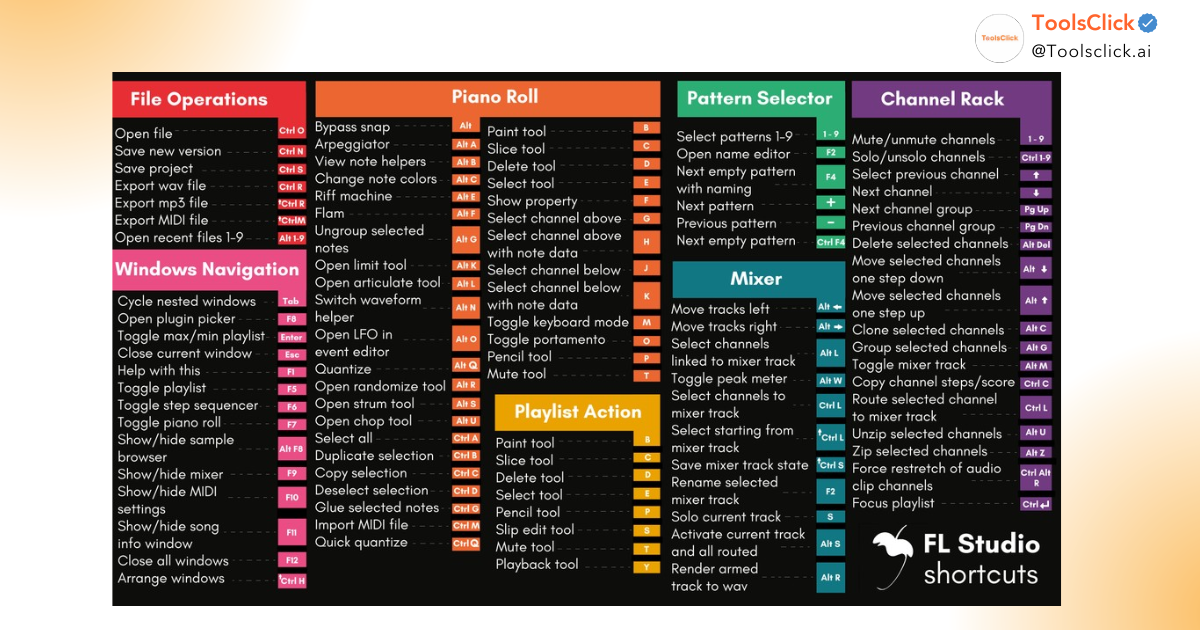
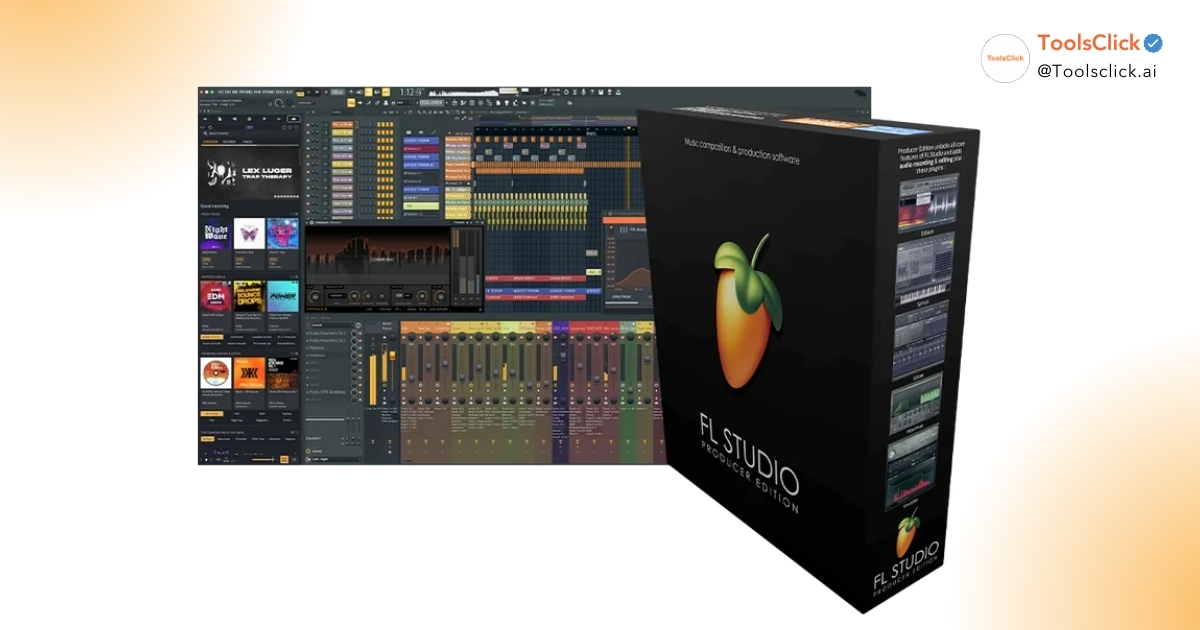
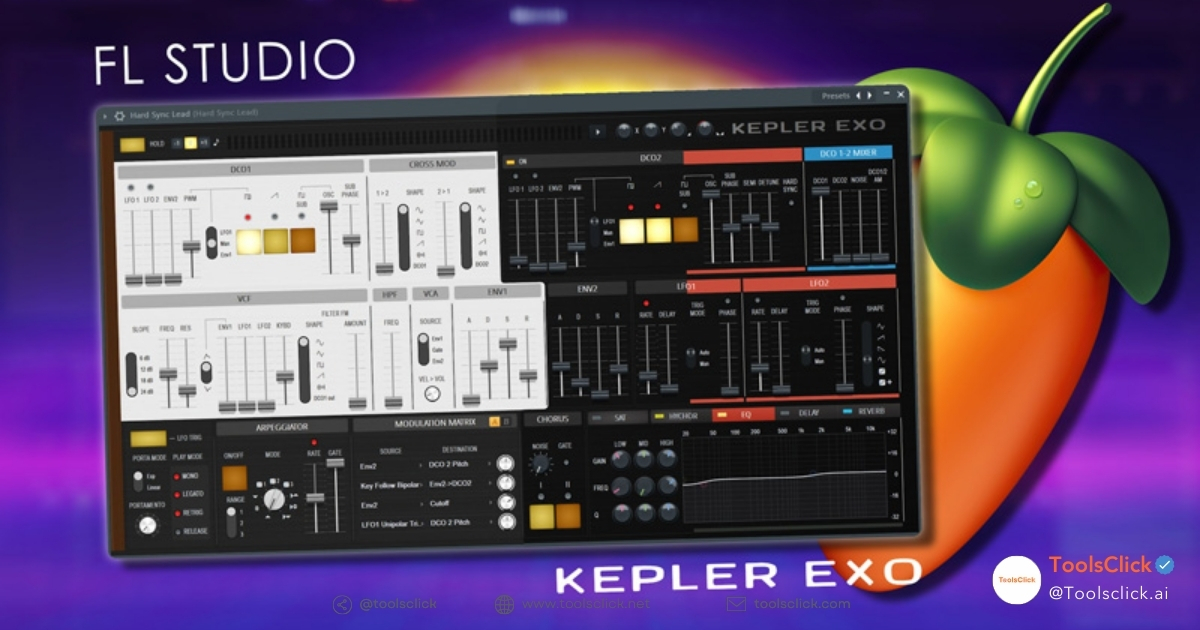


Group buying website for tools
World's leading

Youtube ToolsClick
A guide from A to Z

Fanpage
Top quality

Group ToolsClick
Technical Support & Gifts

ToolsClick Software
Proprietary software